Sent when you comment
When you leave a comment, it sends this to TweakTick:
- the address (URL) of the page you comment on;
- a screenshot of the visible part of that page;
- your comment, and the name and email you give the first time.
Extension for Chrome
Some sites block bookmarklets with a security setting (a Content Security Policy). The TweakTick extension for Chrome works on those sites too, because it does not need the site’s permission to load.
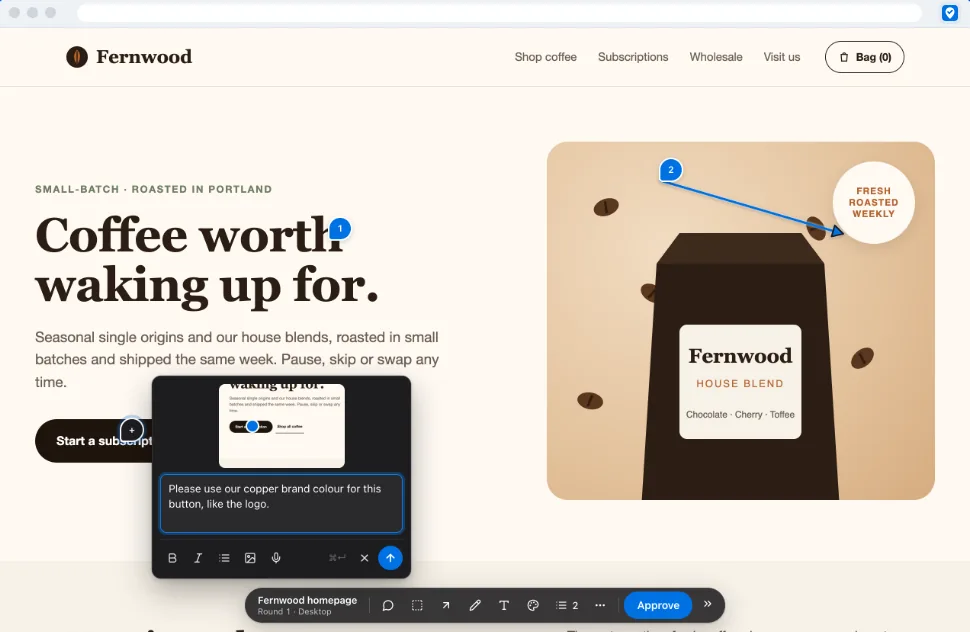
On your TweakTick team? Click the TweakTick button on any page: it takes a screenshot of what you see, you sign in with your TweakTick account once (any plan, any team member), mark the spot and post the comment to a project. Comments stay team-only unless you choose to show them to the client. Disconnect any time from the extension’s editor.
Three steps
Install the TweakTick extension from the Chrome Web Store.
Go back to your review page (the link from your email) and reload it.
Press Review with extension. The site opens in a new tab; click the TweakTick button in the toolbar and the comment tools appear.

What it can and can’t see
The extension only runs on the tab where you click it, and only after you click it. It does not read your other tabs or your browsing history.
When you leave a comment, it sends this to TweakTick:
Only when the team that sent you the link has technical details turned on, it also sends:
It never sends:
More detail in the TweakTick privacy policy.